R E V O L V E RA Magpie-specific fleet management tool
v1.0
You can download it at the below link:
https://github.com/QrowZK/Revolver
User Guide
What does Revolver do?
Revolver runs a Magpie fleet as six wings within a revolver.. It shows each wing's ammo, health and reload time, how many Magpies each target needs, where enemy anti-air is, and how every sortie went.
It also does a
lot more than that - Revolver has over 30 unique management features for Magpie in order to ensure optimal play at every step of the game. These include:
-
A unique way of directing and assigning targets not present in base-ZK
-
Smart reloads and pad management utilities
-
Automated risk assessment tools and overlays
-
A help queue for other players to help them request help better
Cylinder Overview
The main part of revolver is called the Cylinder (which is a revolver), which counts wings and displays other general information. A general idea of how it looks midgame is below:
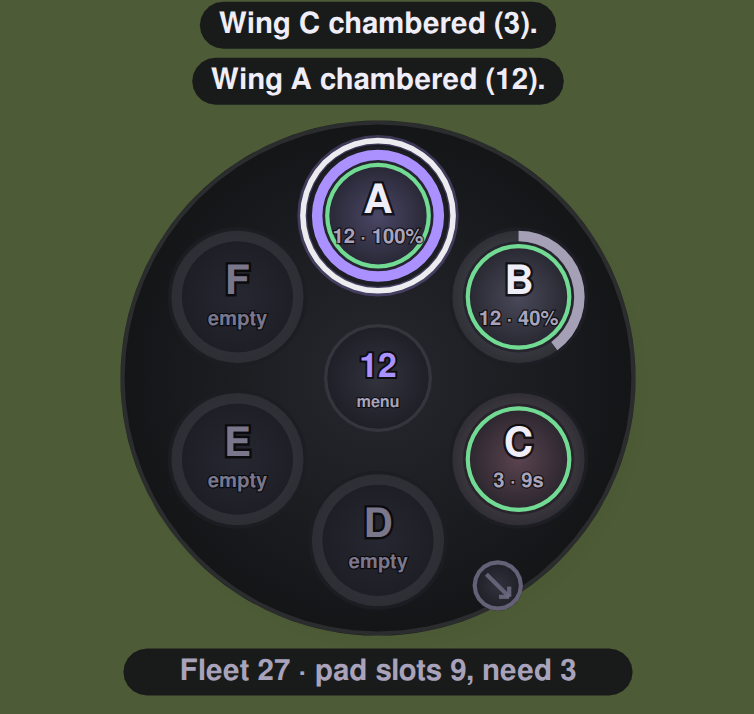
There's a lot going on in the above image, so here's a very basic guide as to what's there:
Reading a Cylinder
-
Outer ring: how much ammo the wing has left. A full ring means every Magpie in the wing is loaded.
-
Inner ring: the wing's average health.
-
White ring: the wing is currently selected.
-
Purple glow: the wing is chambered, meaning it is the next wing that the *Fire command will send.
-
Number or timer in the chamber: the wing letter (A to F), or how long until it is ready again when it is rearming.
-
Hover tooltip: shows the full reload estimate, split into flight time to the pad, time waiting in the pad queue, and time on the pad.
*Revolver only command
Reading a Cylinder
-
Click a chamber, or press its wing key (bindable), to select that wing.
-
Shift-click or Ctrl-click to add more wings to the selection.
-
Pressing two or more wing keys close together (within about half a second) selects all of them.
-
Click the hub to open the feature menu.
Firing and Target Assignment
YOU MUST BIND ALL HOTKEYS FOR REVOLVER UNDER UNIT BEHAVIOUR IN SETTINGS!Marking Targets
Press the Mark key while floating over a unit to mark it as a target. Targets that are marked receive a golden disk around them.
If nothing is marked, using the Fire command will automatically assume you mean any targets under or near your cursor.
When you mark a target, a Line will appear denoting Magpies estimated to be assigned to that target based on efficiency calculation tables.
-
If the line is Green, you can send that amount of Magpies and they will safely kill the target.
-
If the line is Red, assume the Magpie will take lethal damage en route to target.
Breakpoint Cards
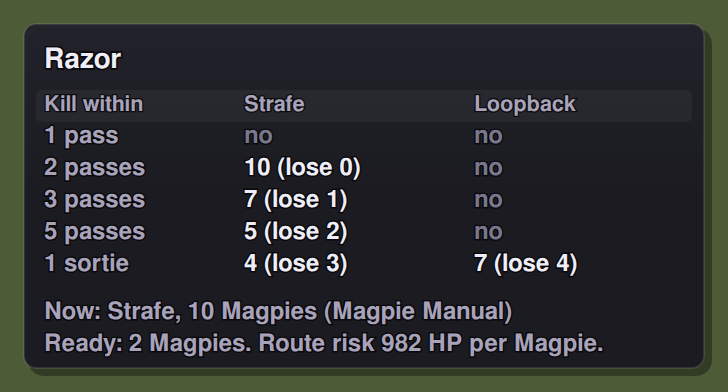
A breakpoint card will appear whenever you hover over a enemy unit. It will show how many Magpies are needed to kill a unit optimally, and also how many Magpies you will use based on mode.
The bottom line will always show what Fire is willing to send at the current moment, for Emergency dispatches.
-
With Correct for health and armour on in settings, the numbers adjust for armoured targets.
Fire
Fire is hyper-adjustable assignment command that lets you automate a lot of tedious target assignment.
-
Kill within (default 2 passes) decides how many Magpies Fire sends at each target
-
Split wings across targets lets Fire divide chambered wings between several marked targets. Off, each target gets one whole wing.
-
Pick Strafe or Loopback per target chooses the better style for each target automatically
-
Hold fire until the target stops launched Magpies wasting ammo on things along the way. Free fire near the target relaxes this once they are in range.
-
Arrive together gathers wings at a staging point (default 1300 elmos out) so they hit at the same moment.
-
Slow chain moves extra Magpies to the next marked target once the current one is 50% slowed.
-
Rotate fire (off by default) launches the next chambered wing at the same targets when a wing runs dry.
Target Reassignment
If a target dies before every Magpie has fired, Revolver sends the rest on to the next marked target, or home if nothing is marked. Going home means every Magpie in the wing lands on the pad with the shortest wait, and the console says how many are heading back. This also covers attacks you order yourself. Magpies you right-click onto a target land once it dies, unless you queued something after the attack. You can change this to always go home, or to do nothing.
Approach, Recall, Pooling
-
Set approach, then drag on the map in the direction the next attack should fly, or click where it should come from.
-
Recall sends the selected Magpies to pads, or every airborne wing if nothing is selected.
-
Pool half-empty Magpies gathers partly empty Magpies together so full wings stay chambered. Turn on Use wing F as the spare wing to make wing F the place they collect.
Pads and Reloading
Reload Estimates
The timer on a rearming wing is a estimate of a full round trip for ready status:
1. Flight time from where each Magpie is now to its pad.
2. Waiting time if the pad's slots are already taken by other planes in the queue.
3. Time on the pad to rearm and repair.
The wing's timer shows the slowest Magpie in it. Hover the chamber to see the three parts separately.
Pad Balancing
Turn Pad Balancing on to prefer shortest total times for pads, not closest pad (as Zero-K does by default).
Fleet and Pad Advisory Settings
The advisor on the bottom of a cylinder will advise as to:
-
fleet size, pad slots, and roughly how many slots the fleet actually needs
-
how long each Magpie spends on a pad
-
whether the pads keep up, or how many more you should build
-
how much energy rearming costs when every needed slot is busy
Radar and Threat Advisory
Radar
Revolver has a specialized radar that keeps track of current and inbound threats occupying given areas.
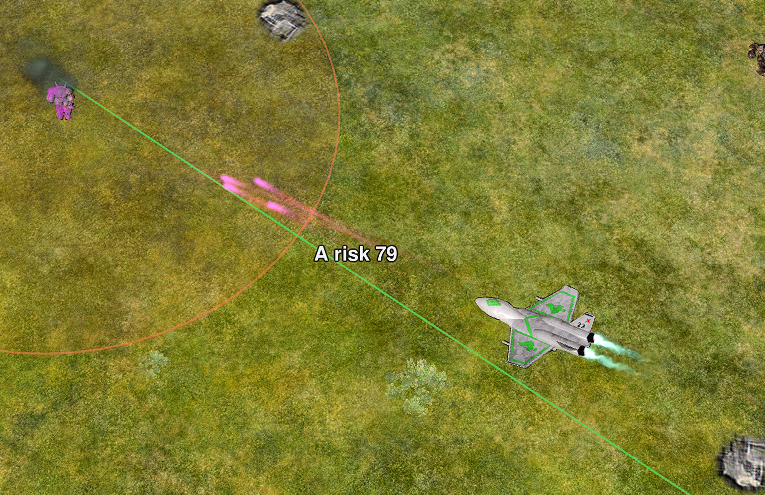
This lets you get an idea of what areas have more or less AA, or which you'll be able to make it home through without dying.
-
There are two styles in settings for radar and tracking - outline and shaded discs.
Enemy AA Labels
-
Artemis and other reloading AA: an estimate of how many missiles they hold and when the next one is ready, counted from when you last saw them. Lower Enemy stockpile speed if the enemy is short on metal or energy.
-
Anti-air under construction: how far along it is and when it will finish ("Razor 60%, done in 1s").
-
Long-reload anti-air such as a Hacksaw that just shot at you: shows that it is reloading.
Route/Road Lines
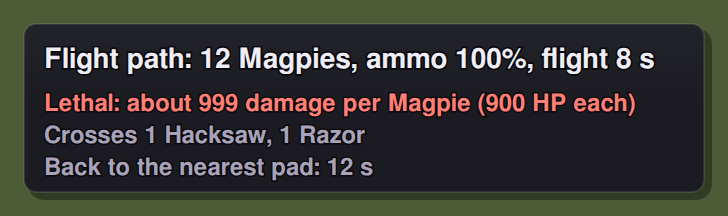
When a wing is flying to a target, a line runs from the wing to the target, coloured by the damage each Magpie is expected to take on the way, with a "risk" figure at the target. Parts of the route that nobody on your team has seen for 60 seconds are shaded, since there may be AA there that no one knows exists yet.
Flight paths also have a infobox of their own when arranging them that will pop up on move commands:
Alerts
-
Alert on new AA along a route warns when new anti-air appears on a route a wing is flying.
-
Fighter alerts warn when enemy fighters come near your wings. Pull wings back from fighters (off by default) also turns them around.
Wing labels
-
The purple text floating over your Magpies is the wing letter and how many Magpies are in it ("A 10"). While a wing is rearming, the label shows its reload timer instead. You can turn them off in settings.
The Ledger
The ledger records every run and shows how well your Magpies are doing.
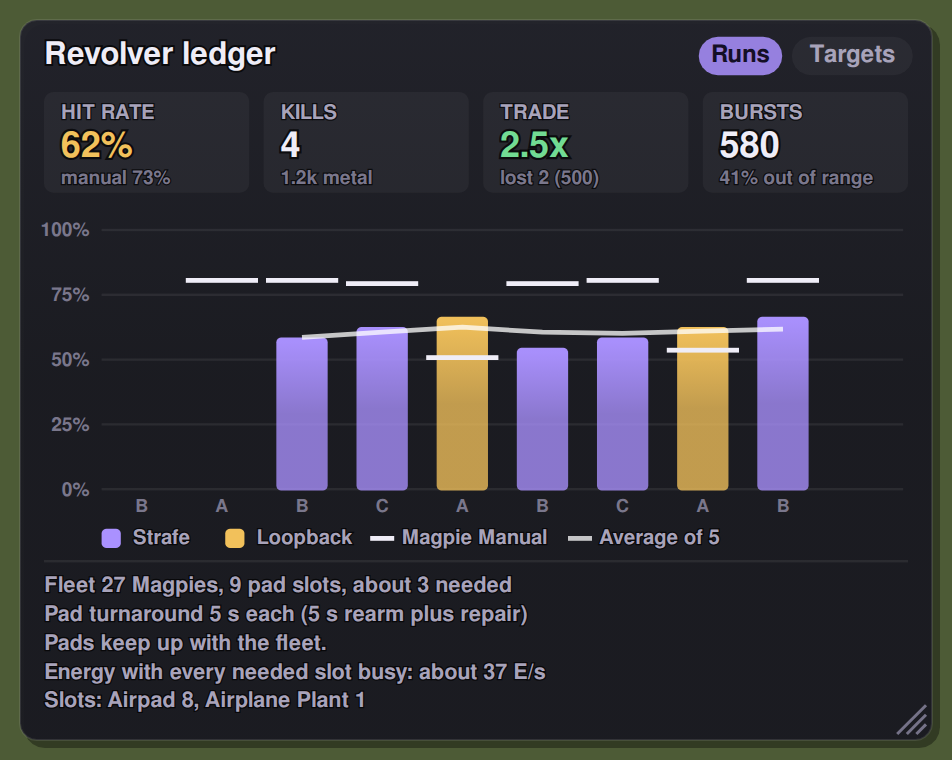
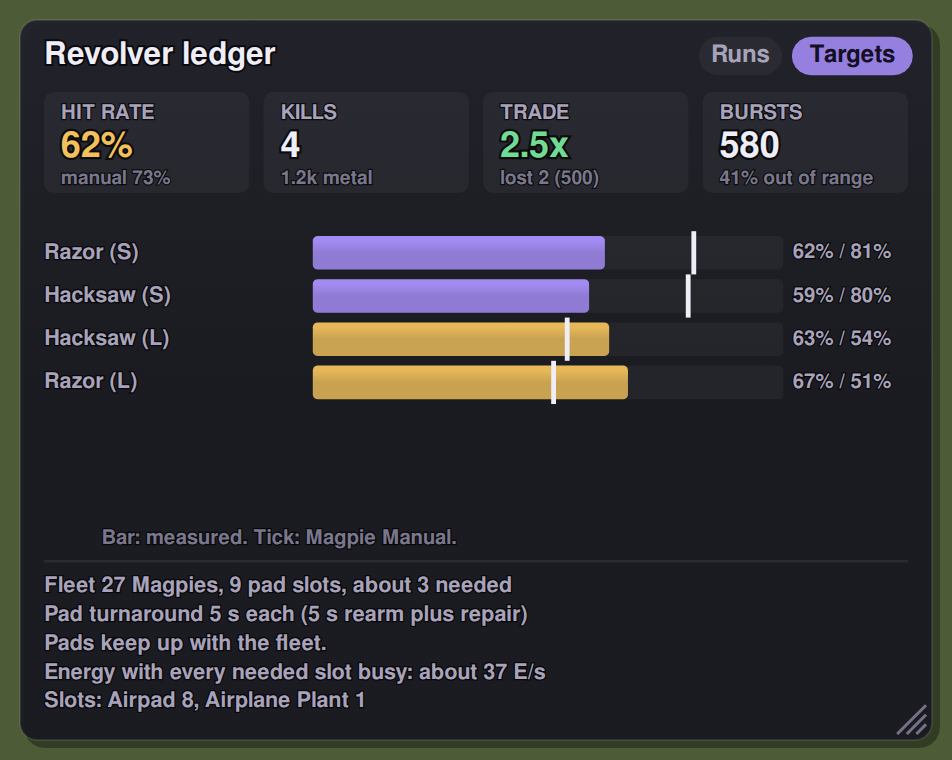
It shows:
-
Hit Rates
-
Kills
-
Trades
-
Burst Damage
at all times.
Everything in here is largely self explanatory, but you can sort by runs and such to view performance, and also view performance in the past games compared to current performance. You can also export data to go over later.
Calibration Mode
You can calibrate breakpoints versus targets in a singleplayer NullAI match by enabling calibration mode in settings.
Allies and Communication
Revolver can tell your team what your Magpies are doing, and list teammates who ask for air support. Both switches are in the feature menu under Allies, and on the Allies settings page. Teammates don't need Revolver for either, as asking is just typing or pinging !air in normal chat.
Telling Allies about Attacks
Tell allies about Magpie attacks is off by default.
It can be triggered by issuing a fire command, or Magpies moving automatically to other targets as ordered.
It creates messages like these:
quote:
Magpies: 10 on Razor (north-west) for Bravo, 4 on Hacksaw (north). |
Which lists Magpies sent and assigned, where, and the player that pinged them.
Messages from 1 wing of Magpies are only send every 30 seconds maximum.
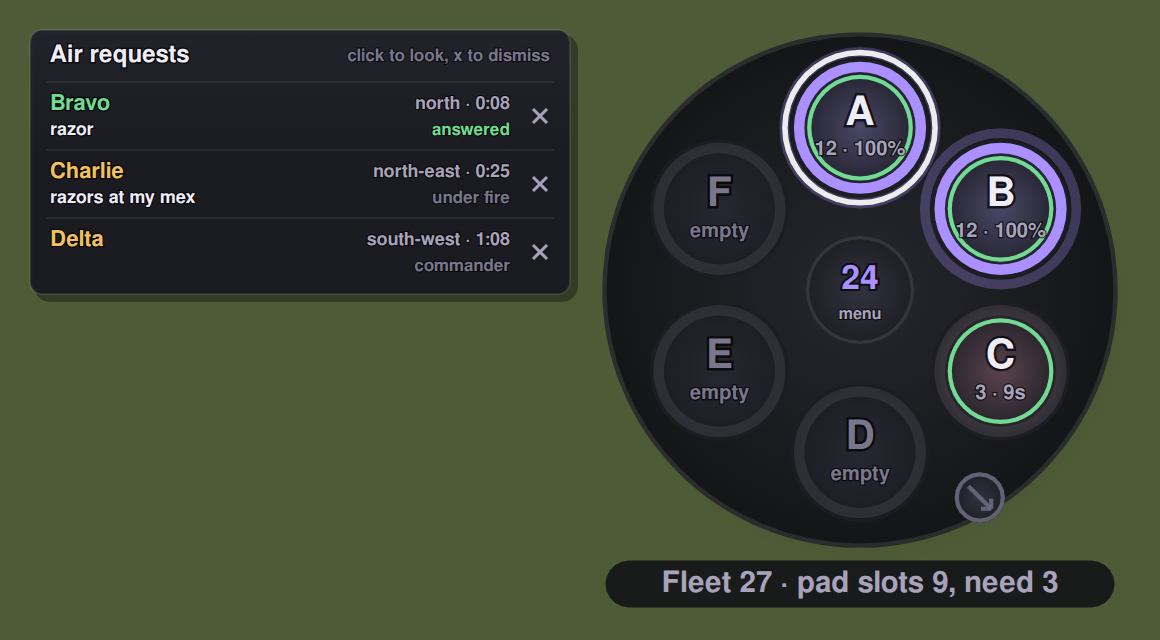
Requests Panel
A requests panel will pop up when either !air is listed in chat, or when it's pinged. When you answer it, it will turn from yellow to green. You will also hear some beeping, if enabled.
-
Assignments are answered by moving Magpies to certain points chosen dynamically that involve the player who requested help.
-
Clicking on a line in the box moves the camera to the chosen ask position.
-
Players can only have 1 request active at a time.
-
You can also submit your own !air requests.
I think thats about it.